Using NSL Points App: Settings
Posted October 30, 2014 by TEN80Using the NSL Points App
Using the App is the same both on Windows and iOS, so this guide applies to both.
Getting Started:
When opening the App yu will be taken to the Settings Screen since most likely you will have to enter or confirm some information. Depending on your event the App might come fully configured or with only some of the data. In any case make sure that all the data you need for your event is correct and ready to go before event day!
Go through the settings in the order they are presented on the screen. “Submit Points” is not technically a setting and is only needed after the event to send the scores to us.
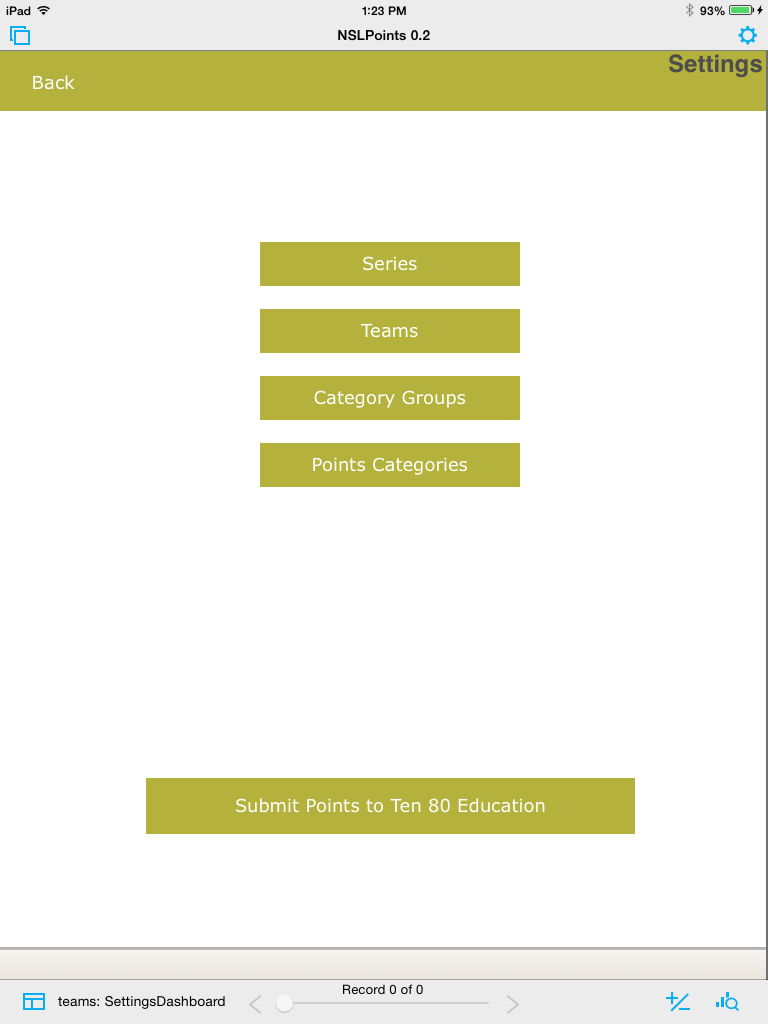
Series
Lets you select which series will be competing (NSL Racing/ NSL Rover/ NSL Innovation etc.).
Teams
Enter team names, pit numbers and select the series’ a Team can compete in.
Category Groups
Allows you to group categories to see the score for only those categories.
Points Categories
Enter Points Categories such as 10 lap Race, Endurance Race, Elevator Pitch etc.
Submit Points…
After the event the Ten80 Team needs to know the scores – this button sends an email with all the relevant data to us.
Series
Select the series (one or more) that will be competing in this event. The select button turns green for the selected series. Most Events only have one series like “NSL Racing Challenge”. If you Racing teams and Rover teams you would select “NSL Racing Challenge” and “NSL Rover Challenge”. One team can participate in several challenges. This setting will help keep the points for each series separate.
When done click or tap the “Back” button.

Team Settings
You have to enter all the teams here before you can start using the App to keep the score. In some cases this can be pre populated, in some you have to enter all the information.

Always fill out all fields. The school list is pre-populated with the schools who registered for the event.
Category Groups
Category Groups are optional but can become very relevant. When looking at the scoreboard, points are always tallied up across all categories for each team. The National Stem League however awards prices for the team who did best only in the race categories. This is where Category Groups will help you: On the scoreboard you will be able to select a group and automatically you see the score only for the categories in that group.

Define the groups in this view, always assign a series to Category Groups! When defining the Categories you will be able to assign them to a group. See below.
Points Categories
Always select a series before defining your first category. Enter the name and optionally assign it to a category group (see above). To create a new category you can either click/ tap the “new” button or simply start typing in the first empty row.

Keeping Points
The Scoreboard
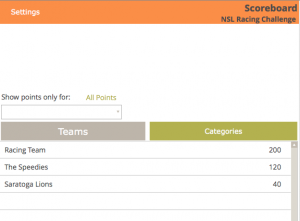
This is the place where you can see the team standings.
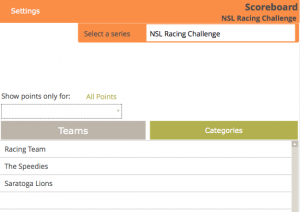
Depending on your App version and if you have several series competing at the event you might or might not see the series selector in the top right corner. Teams and points are filtered by series, so make sure you are looking at the correct one. The currently selected series will always be displayed in the title bar on the right side too. (In this example “NSL Racing Challenge” below “Scoreboard”).
 |
 |
To filter the points view by a category group (like Race Events), select the group below “Show points only for:”. Use the button “All Points” to clear the filter and show the overall standing again.

Category view
Selecting “Categories” navigates to the category list. No points will be shown here.
Select a Category to enter points for one or more team.

Working with Placements
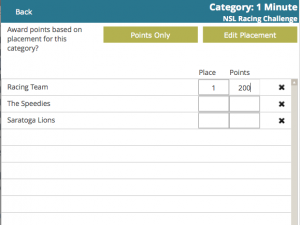
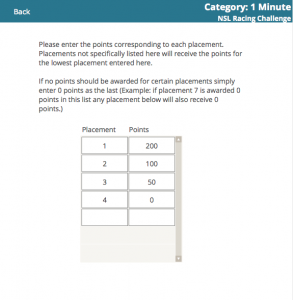
In some categories points are awarded depending on the placement. You can enter the amount of points for each placement by clicking on “Activate Placement”.
Click “Edit Points” to enter the points awarded for each placement. Configuring this ahead of the event allows you to simply enter the placement when scoring without having to remember the points. Simply enter the placement and the points field will be filled in automatically.
Changing the points for a placement will not change points already awarded!
 |
 |
Entering Points per Team
The method described above allows you to enter points for several teams in one category, ideal for example for race events.
To see the points for each category per team navigate back to the scoreboard.
Tap/ Click on a team in the points list. You can enter or edit points for each category here.

The “x” to the right of each row deletes the category and all awarded points in that category for this team.